Free tool · Body language coach
Practise your bodylanguage before it counts,free and private.
Tells is a free tool I built that watches your posture, hands and face through your camera and tells you, live, what you’re doing well and what to change. Use it before a job interview, a presentation or a big video call, then get a short summary of how it went. It works in English, Bengali and Hindi, and it all runs in your browser, so nothing is recorded or uploaded.

In one minute
- Four modes: read someone, interview practice, presentation practice and video call check.
- Live tips on eye contact, posture, hand movement and expression, as you go.
- A summary after every practice run: what went well and what to work on.
- In English, বাংলা and हिन्दी.
- Nothing is recorded. No sign-up, no limit, no cost.
Who this is for
Anyone getting ready for an interview, a pitch, a class presentation or a client call who wants honest feedback on how they come across, without asking a friend to watch.
Open Tells in another tab and try it as you read.
On this page
Most people find out about their nervous habits the hard way: after the interview, from a recording, or never. You can’t see yourself while you talk, and a mirror only shows you what you do when you’re watching. I wanted a coach that watches for you while you practise, speaks up only when something is worth fixing, and keeps everything on your own device. Here is what I built and how to use it.
The tool
What Tells does
- Watches your body and face live. It follows your shoulders, arms, hands and head, and reads expressions like smiling, frowning and pressed lips.
- Turns that into plain tips. Not “left wrist at 0.42”, but “Uncross your arms. Rest your hands on the table or in your lap.”
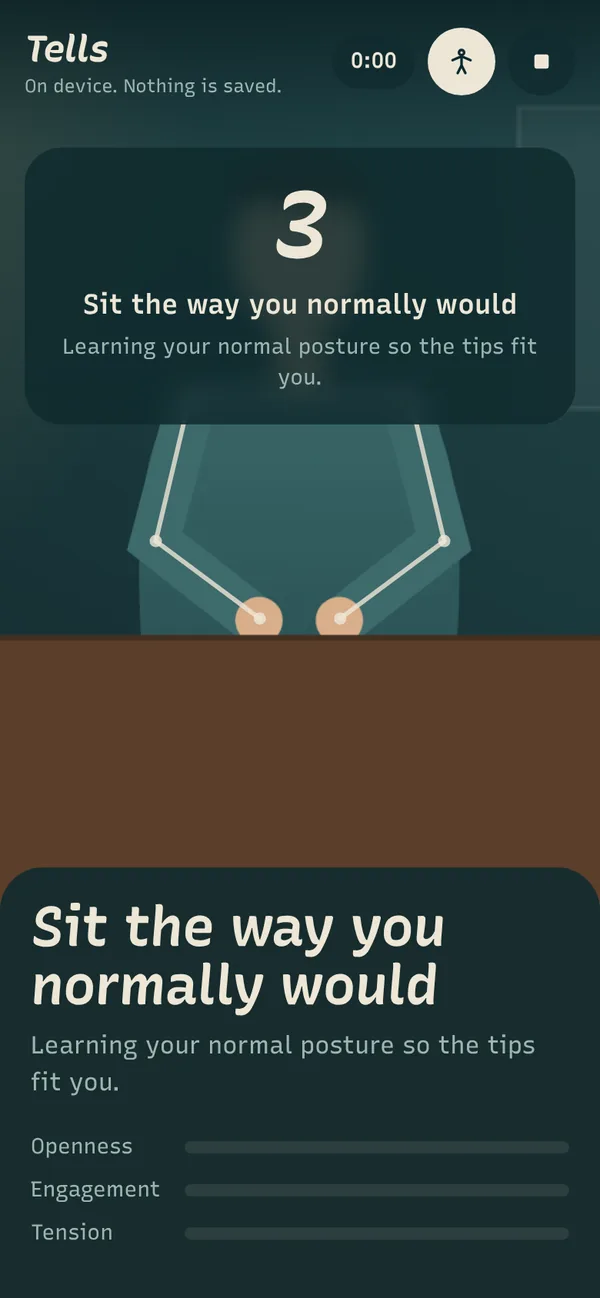
- Learns your normal first. In practice modes it spends a few seconds learning how you usually sit or stand, so the tips fit you rather than an average person.
- Sums up each run. When you finish, you see what went well, what to work on and how often each habit showed up.
- Speaks three languages. English, Bengali and Hindi, on every screen.
- Keeps it private. The AI runs in your browser. No video is saved and nothing leaves your device.
For you: the feedback a friend would give you after a practice run, while you’re still practising, and without anyone else seeing the video.
Modes
The four modes
You pick a mode on the start screen. Each one points the camera somewhere different and gives a different kind of feedback.
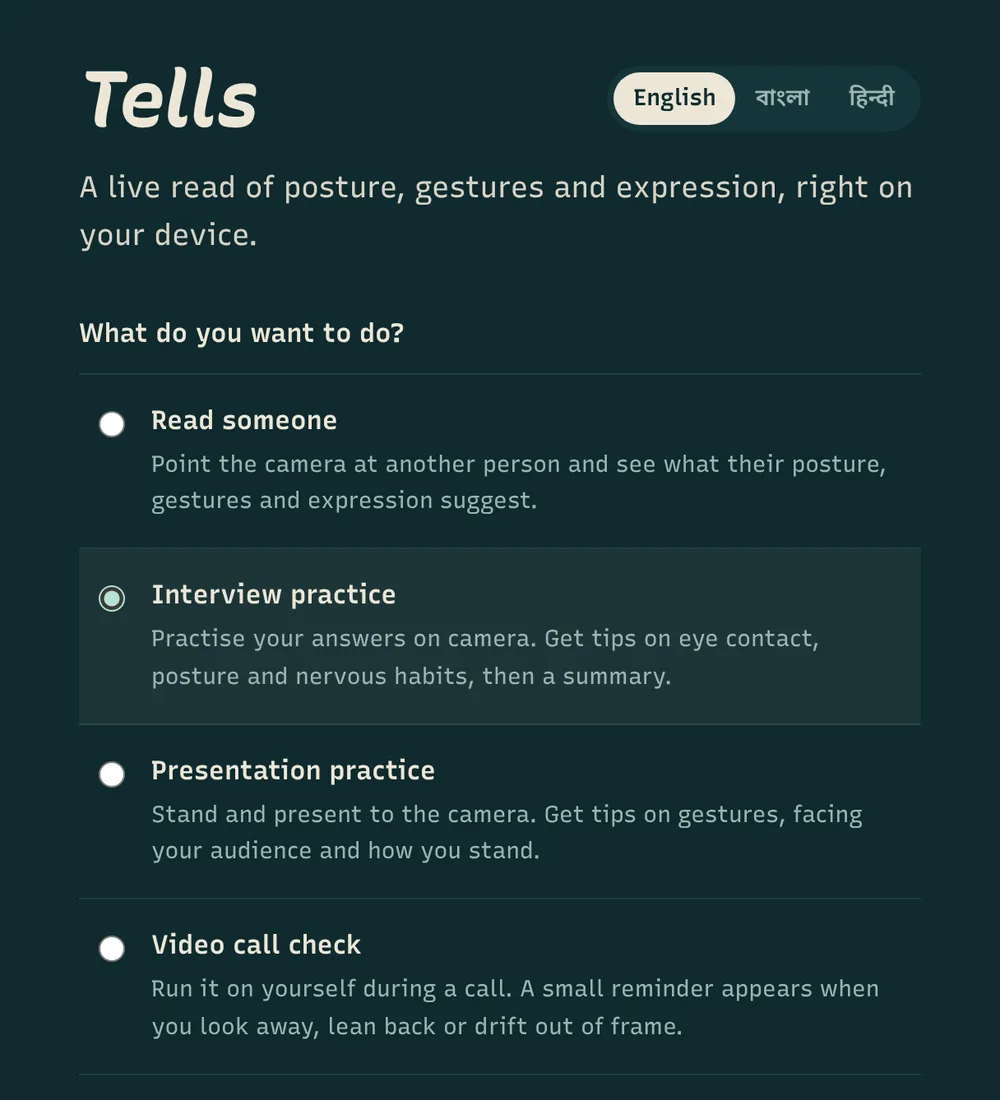
| Mode | Camera points at | What you get |
|---|---|---|
| Interview practice | You, sitting | Tips on eye contact, posture and nervous habits, then a summary |
| Presentation practice | You, standing | Tips on gestures, facing your audience and how you stand, then a summary |
| Video call check | You, during a real call (computer only) | One short reminder at a time when a habit lasts too long, then a summary |
| Read someone | Another person, who knows and agrees | What their posture, gestures and expression can suggest |
Interview practice
Sit at a desk facing the camera and answer questions out loud, ideally the ones you expect to get. Tells watches for the habits interviewers notice: looking down, touching your face, fidgeting, crossing your arms, leaning back. It also tells you when you’re doing well, like keeping eye contact or leaning in slightly. The tips are written for interviews. For eye contact it says “Look at the camera, not at the interviewer’s face on screen.”
Presentation practice
Stand back far enough that your upper body and hands are in frame, and present to the camera as if it were your audience. Here, gestures count as a good thing (“Use gestures to show size, steps and comparisons”), while looking down at notes or turning away to your slides are flagged.
Video call check
Run Tells on your laptop webcam during a real Zoom, Meet or Teams call. It stays quiet unless a habit lasts too long, then shows one short reminder, like “Look back at the camera”. More on this below.
Read someone
Point the camera at another person to see what their body language can suggest: open, guarded, distracted, paying attention. Before the camera starts, you have to tick a box confirming the person knows and is okay with it. It’s useful for coaches, trainers and teachers giving feedback on a practice session, or for two friends practising together.
Try it
How to use it
- Open Tells in Chrome, Edge, Safari or Firefox, on a phone or a computer.
- Pick English, বাংলা or हिन्दी at the top. Tells remembers your choice on that device.
- Choose a mode. For Read someone, tick the box to confirm the person knows.
- Tap Start camera (on a computer it says Use this computer’s camera) and allow camera access when your browser asks.
- The first time, wait while the AI downloads (around 20 MB, so use Wi-Fi if you can). After that your browser keeps a copy and it starts straight away.
- In practice modes, sit or stand naturally during the short countdown (4 seconds, or 3 for a video call). This is how it learns your normal posture.
- Practise. Talk through your answers or your slides, and glance at the panel when you want feedback.
- When you’re done, press the square button at the top right to end the session and see your summary.
For you: from opening the link to your first tip takes about ten seconds, with nothing to install and no account to make.
The live view
Reading the screen
On a computer the panel sits to the right of the camera view; on a phone it slides up from the bottom. Here is what each part means.
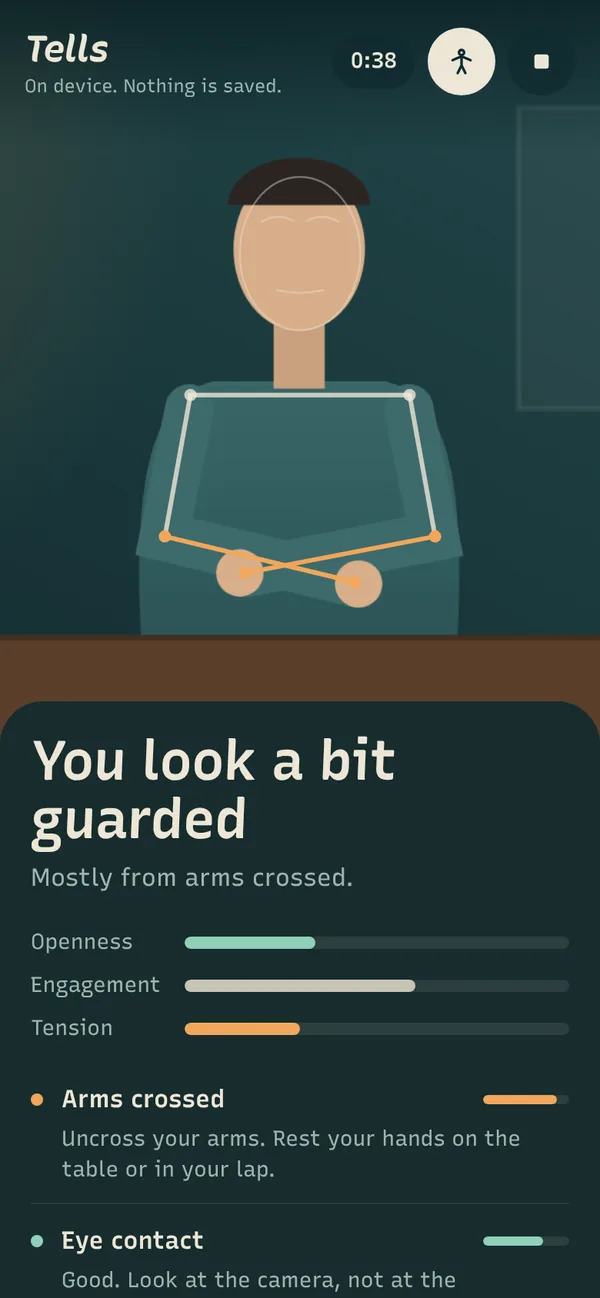
- The headline is the overall read, such as Relaxed and open, You look tense or You look attentive. It changes only after a new read has held for over a second, so it doesn’t flicker. Its letters get rounder as you look more open and heavier as tension rises.
- The line under it names the two cues behind that read, for example “Mostly from arms crossed and looking down.”
- Three bars show openness, engagement and tension, each built from several cues together.
- The cue list shows each habit it can see right now. A green dot means it’s working for you, amber means it’s worth changing, and grey means it depends. The small bar shows how strong the cue is. New cues join at the bottom and rows don’t jump around, so you can read them mid-sentence.
- The skeleton drawn over the video shows what the AI is tracking. Joints involved in an amber cue turn amber too. Tap the figure button to hide it.
- The timer counts your practice time. The arrows button switches between front and back cameras.
- Hints appear if it can’t see enough, like “Move back a little so your shoulders and hands are in frame.”
Under the hood
What it notices, and how
Tells runs two of Google’s open-source MediaPipe models in your browser. One finds 33 points on your body. The other finds 478 points on your face and scores 52 expressions, like how much you’re smiling or how raised your brows are. Tells then turns those points into cues:
| Cue | How it’s measured |
|---|---|
| Arms crossed | Both wrists have crossed the middle of your body, at chest height |
| Hands on hips | Wrists at your hips with elbows pointing out |
| Hand near face | A hand close to your nose or mouth |
| Gesturing | Your hands move through a wide range over two seconds |
| Fidgeting | Small, quick back-and-forth hand movements over two seconds |
| Leaning in or back | Your shoulders closer or further than your hips, or than your own normal |
| Body turned away | One shoulder much nearer the camera than the other |
| Shoulders raised | Your neck looks shorter than your own normal |
| Smiling, brows, pressed lips | The face model’s expression scores |
| Eye contact, looking away or down | Head angle plus where your eyes point |
| Head tilt, nodding, shaking | Head roll, and repeated up-down or side-to-side movement |
| Blinking a lot | Blinks per minute over the last 30 seconds |
Every cue is smoothed over a fraction of a second and has to cross a threshold to appear and a lower one to disappear, so a single odd frame doesn’t trigger a tip. Several of them, such as raised shoulders and leaning, are compared with your own baseline from the calibration, not a fixed number. On slower phones, the face model runs every other frame so the camera view stays smooth.
After each run
The summary
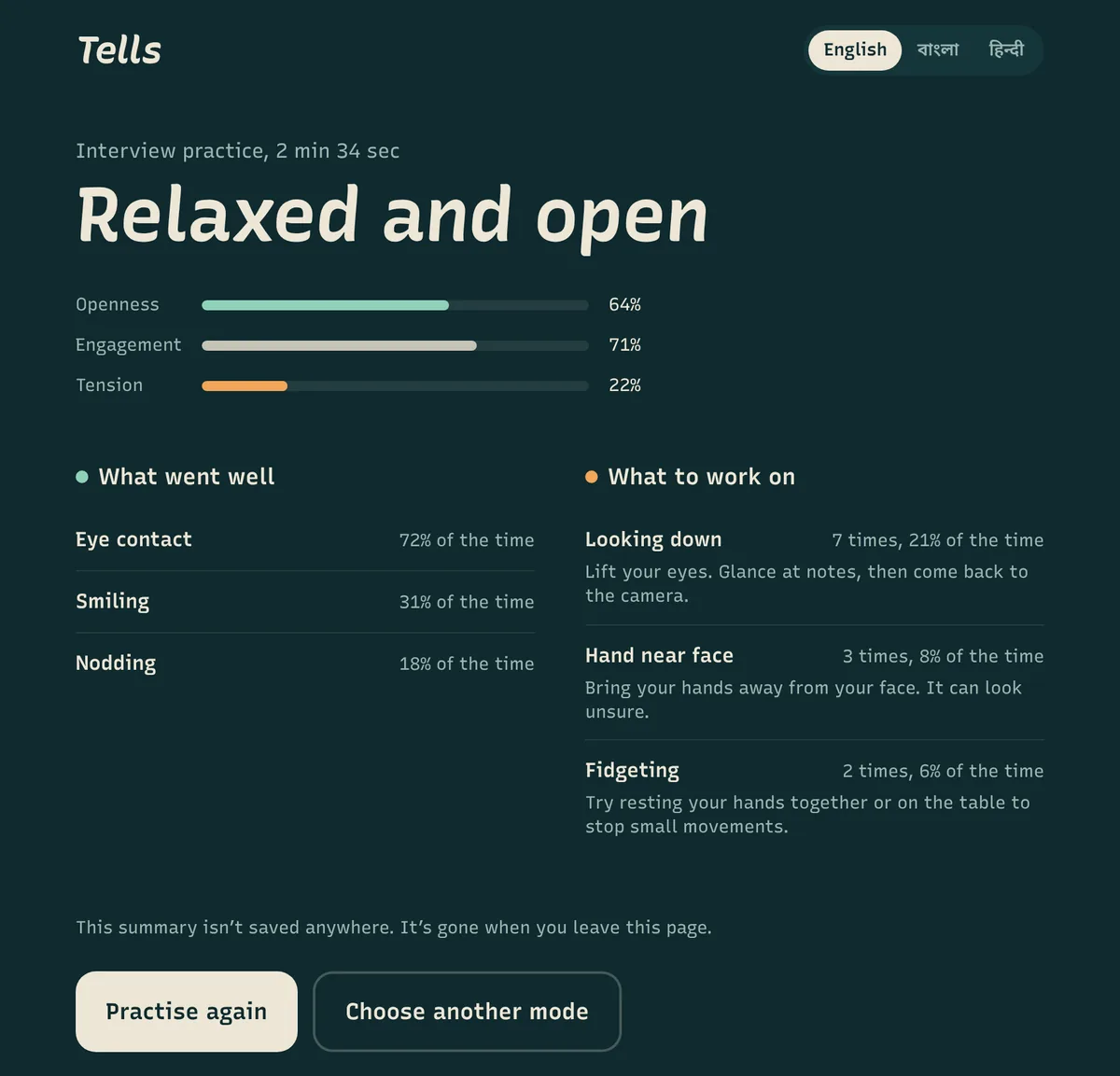
- The overall read for the whole session, from your average openness, engagement and tension.
- What went well: good habits that showed up for at least 15% of the time, like eye contact or smiling.
- What to work on: habits that showed up for at least 5% of the time or three or more times, each with how often, for how long and a tip.
- Practise again starts a fresh run in the same mode. Choose another mode takes you back to the start.
The summary is kept in your browser’s memory only. It isn’t saved anywhere and it’s gone when you leave the page. Runs shorter than 30 seconds get a note that the picture is thin, because a few seconds isn’t enough to judge habits.
For you: one or two specific things to change before your next run, instead of a vague sense that it “went okay”.
During real calls
Video call check
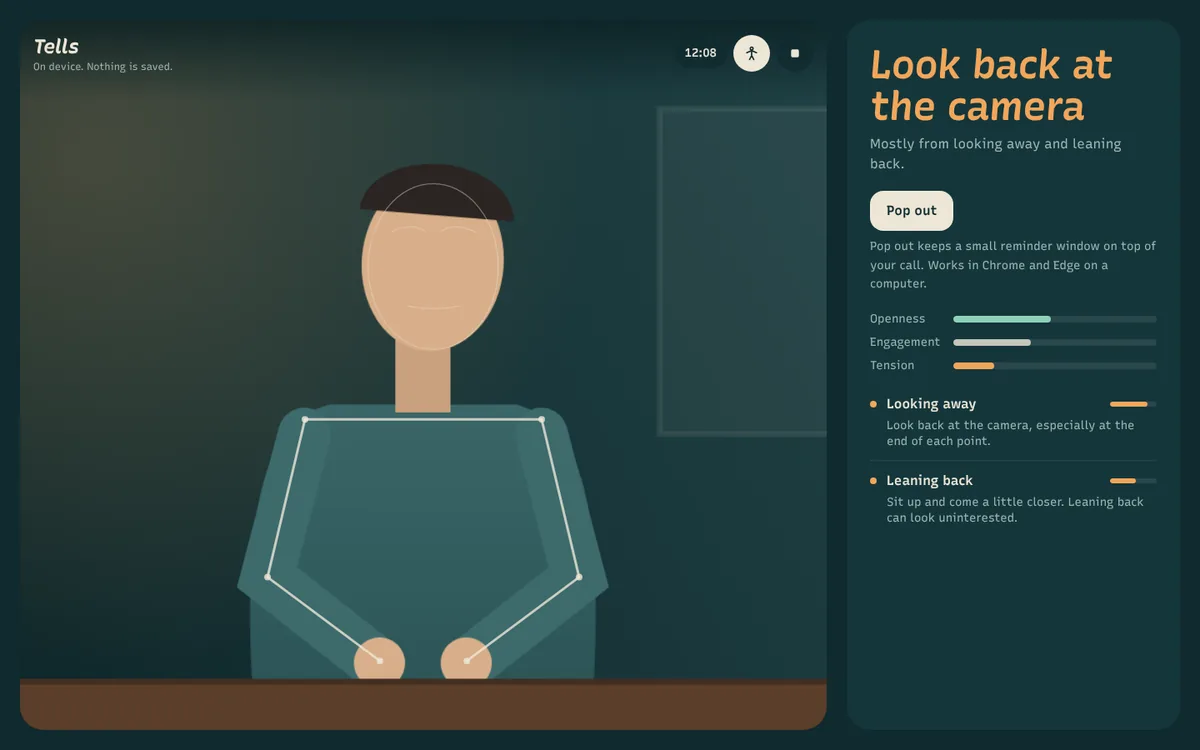
Live tips would be distracting during a real call, so this mode stays quiet and only shows a reminder when something has lasted long enough to matter:
| Reminder | Shows after |
|---|---|
| You’ve moved out of frame | 3 seconds without your face in view |
| Look back at the camera | 5 seconds of looking away |
| Hands away from your face | 6 seconds with a hand near your face |
| Lift your eyes to the camera | 8 seconds of looking down |
| Try keeping your hands still | 8 seconds of fidgeting |
| Drop your shoulders and breathe | 8 seconds of high tension |
| Sit a little closer | 10 seconds of leaning back |
Only one reminder shows at a time, and each stays up long enough to read. When the habit stops, it switches back to “You’re doing fine”.
Pop out
Your call window usually covers the browser, so Tells has a Pop out button. It opens a small window that stays on top of everything, showing your camera preview, the current reminder, the timer, and buttons to go back or end. This works in Chrome and Edge on a computer. In other browsers, keep the Tells window visible beside your call.
For privacy, leaving the Tells tab without the pop-out turns the camera off. With the pop-out open, it keeps running because the window is right there in front of you.
Some laptops only let one app use the webcam at a time. If Tells says another app is using the camera, try joining the call in your browser (Meet, or Teams and Zoom on the web), since browser tabs can share the camera.
Two devices
Use your phone as the camera
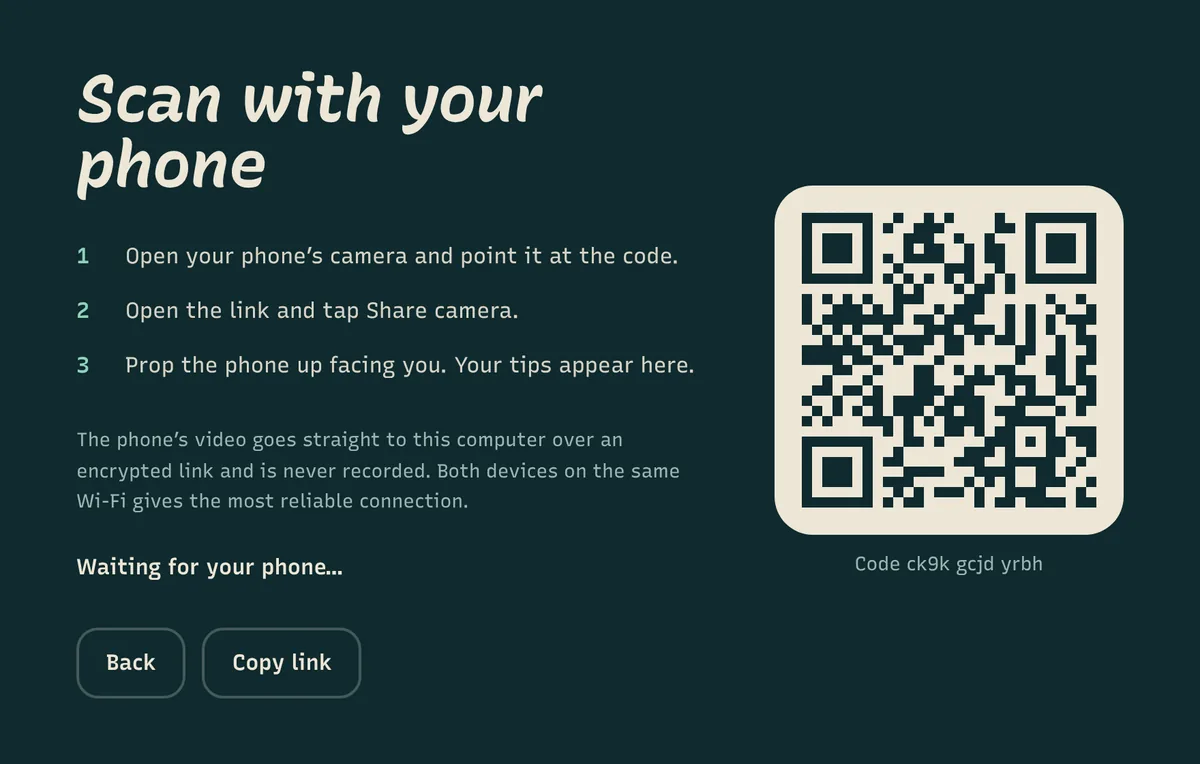
Your phone camera is usually better than a laptop webcam, and a phone on a stand can be placed further back to see your whole upper body. On a computer, the start screen has a second button: Use your phone’s camera.
- Choose your mode, then click Use your phone’s camera. A QR code appears.
- Scan it with your phone’s camera and open the link. It opens in the same language as your computer.
- Tap Share camera, then prop the phone up facing you (or point it at the person, in Read someone).
- The skeleton, tips and summary appear on your computer, where they’re easier to read.
The video goes directly from your phone to your computer over an encrypted connection. A small free service only introduces the two devices and never sees the video. Your computer can switch the phone between front and back cameras, and stopping on either device ends the session on both. Having both devices on the same Wi-Fi gives the most reliable connection.
Languages
Bengali and Hindi
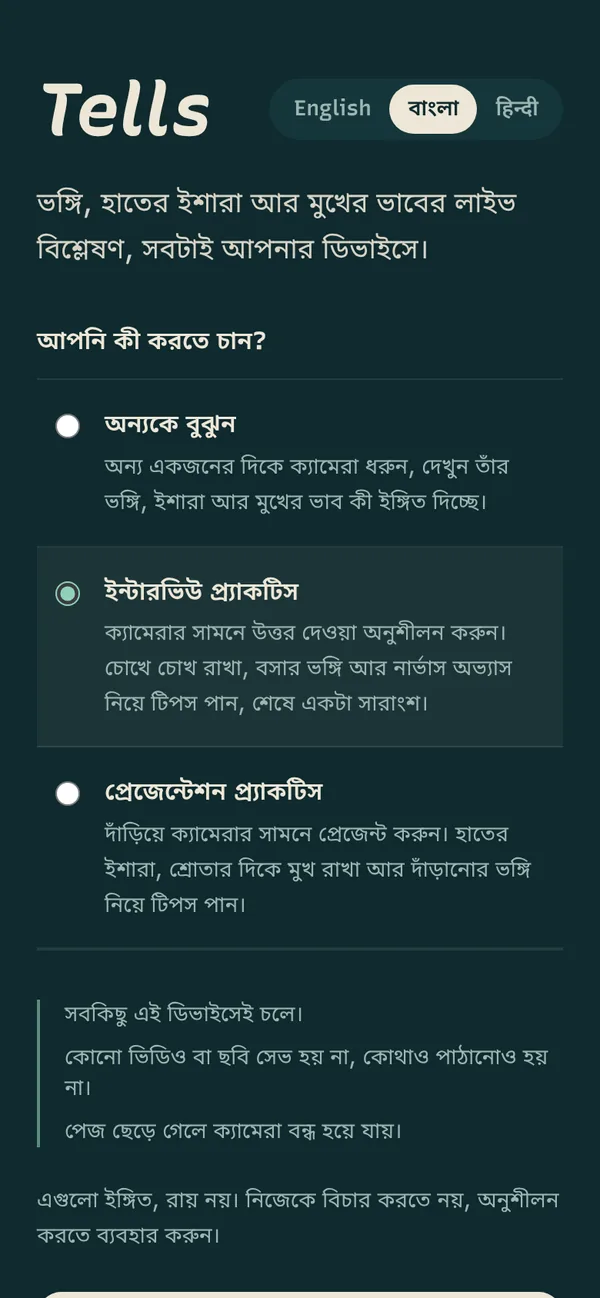
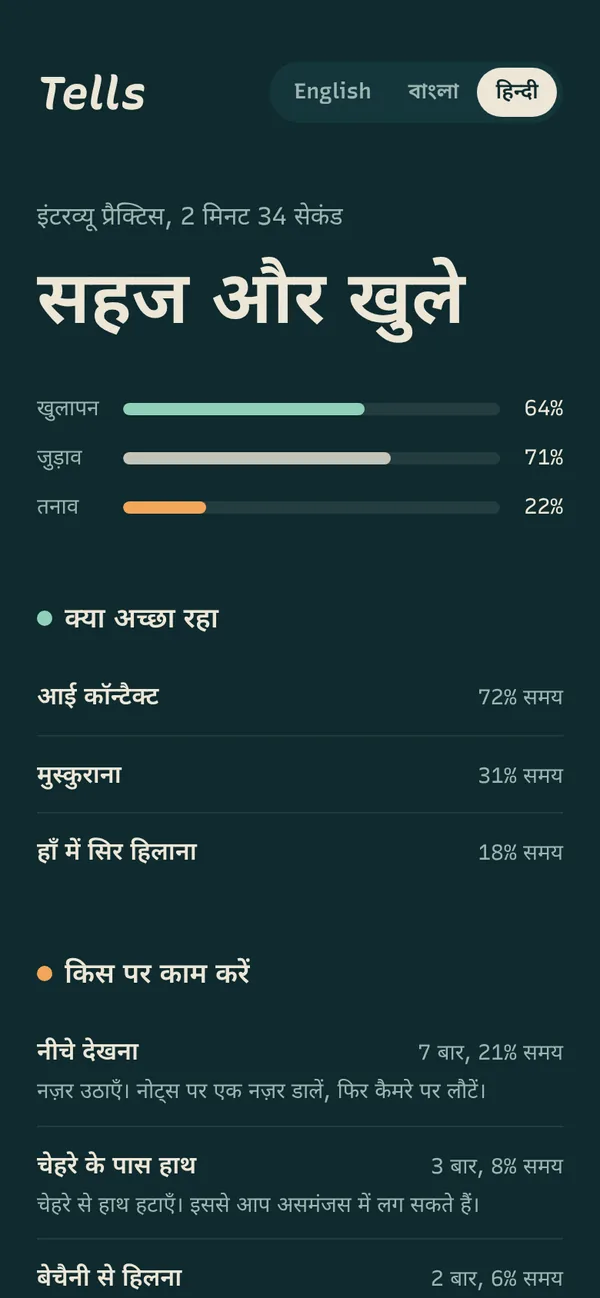
Almost every body language tool is English-only, which leaves out a lot of people preparing for interviews in India. Tells is fully translated into Bengali (বাংলা) and Hindi (हिन्दी): the modes, every cue and tip, the call reminders, the summary and the phone pairing screens. Numbers in Bengali use Bengali digits. Switch any time from the top of the start screen or the summary.
Privacy
What happens to your video
- Nothing is recorded. Each camera frame is read in your browser and thrown away.
- Nothing is uploaded. The AI models are downloaded to your device once; your video never goes to a server.
- The summary isn’t saved. It lives in memory and disappears when you leave the page.
- The camera turns off when you leave. Switching tabs or closing the page stops it (except with the video call pop-out open).
- Only two things are remembered on your device: your language and your last mode.
Limits
What Tells won’t do
Body language shows cues, not thoughts. Crossed arms can mean someone is guarded, or just cold. So Tells describes what it sees and what that often means, and leaves the judgement to you. There are also things I chose not to build:
- No lie detection. Body language can’t reliably tell whether someone is lying, and pretending otherwise causes real harm.
- No “are they attracted to me” readings. Same reason.
- No scoring of job candidates or students. Interview practice is for practising your own answers, not judging other people. Reading people’s emotions at work or in school is restricted in some places, for example under the EU AI Act.
- No hidden or background mode. The camera is always visible, and reading another person needs their okay first.
Your turn
Tips for better practice
- Light your face from the front. A window behind you turns you into a silhouette, and expression tips pause.
- Put the camera at eye level, about an arm’s length away for interviews and calls, so your face and shoulders are in frame.
- For presentations, step back until your hands are in view, or use your phone on a stand as the camera.
- Look at the lens, not the screen. That’s what reads as eye contact to the other person.
- Practise for at least two minutes. Habits show up once you relax into your answers, not in the first few seconds.
- Fix one thing per run. Pick the top item in “What to work on”, practise again and see if it drops off the list.
FAQ
Questions people ask
Is Tells really free?
Yes. There is no sign-up, no limit and no paid version. The AI runs on your own device, so there is no cost per use.
Is my video recorded or uploaded?
No. Each camera frame is read in your browser and thrown away. Nothing is saved, and nothing is sent to a server. The practice summary is kept in memory and disappears when you leave the page.
Does it work on a phone?
Yes. Reading someone, interview practice and presentation practice all work in a phone browser. Video call check is for computers, because a phone can’t share its camera with a call app.
Which languages does it support?
English, Bengali and Hindi. Every screen, cue, tip and summary is translated, and you can switch at any time from the top of the start screen.
How accurate is it?
It measures posture, movement and expression reliably in good light, but body language shows cues, not thoughts. Treat each tip as something to notice, not a verdict about you or anyone else.
Can you build a tool like this for my business?
Yes. I build custom web tools, apps and AI features for businesses. Tell me what you need.
The person in these screenshots is a drawn figure, not a real camera feed, so no one’s photo appears in this post. Pose and face tracking use Google MediaPipe (Apache 2.0 licence).